How to View CCTV on Phone: Complete Setup Guide
You're away from home when a neighbour messages to say someone has been looking over your garden gate. You open the CCTV app, but the recorder appears offline. The cameras are working locally, yet your phone can't reach them from outside the property. That situation is common because a closed-circuit system and a smartphone use different paths, and connecting them requires more than installing an app.
The reliable approach is to connect the camera or recorder to broadband, pair it with the manufacturer's secure remote-access service, and test live view, playback, alerts, and permissions before relying on it. Remote viewing can help you check deliveries, investigate an alarm, monitor a shop after closing, or share relevant footage with the police. It also creates another route into sensitive video, so convenience must be balanced against cybersecurity and UK data protection duties.
Table of Contents
- Why Remote CCTV Viewing Matters for UK Homes and Businesses
- Preparing Your CCTV System for Mobile Access
- Connecting Your Cameras to a Smartphone App
- Choosing Between P2P, ONVIF, and RTSP Protocols
- Security Risks and UK Legal Obligations for Remote Viewing
- Troubleshooting Common Connection and Streaming Problems
- When to Call a Professional Installer
Why Remote CCTV Viewing Matters for UK Homes and Businesses
The UK already has a substantial surveillance environment. Police figures widely reported that the country had about 1.85 million CCTV cameras, while one estimate suggested the average Briton was captured on camera 70 times a day. The same development period saw smartphone access become widespread, with one UK report stating that 35 million people had a smartphone in 2015, about 71% of the population. Those figures help explain why smartphone CCTV viewing moved from a specialist feature to an expected part of many installations. The Standard's report on UK CCTV and smartphone use provides that historical context.
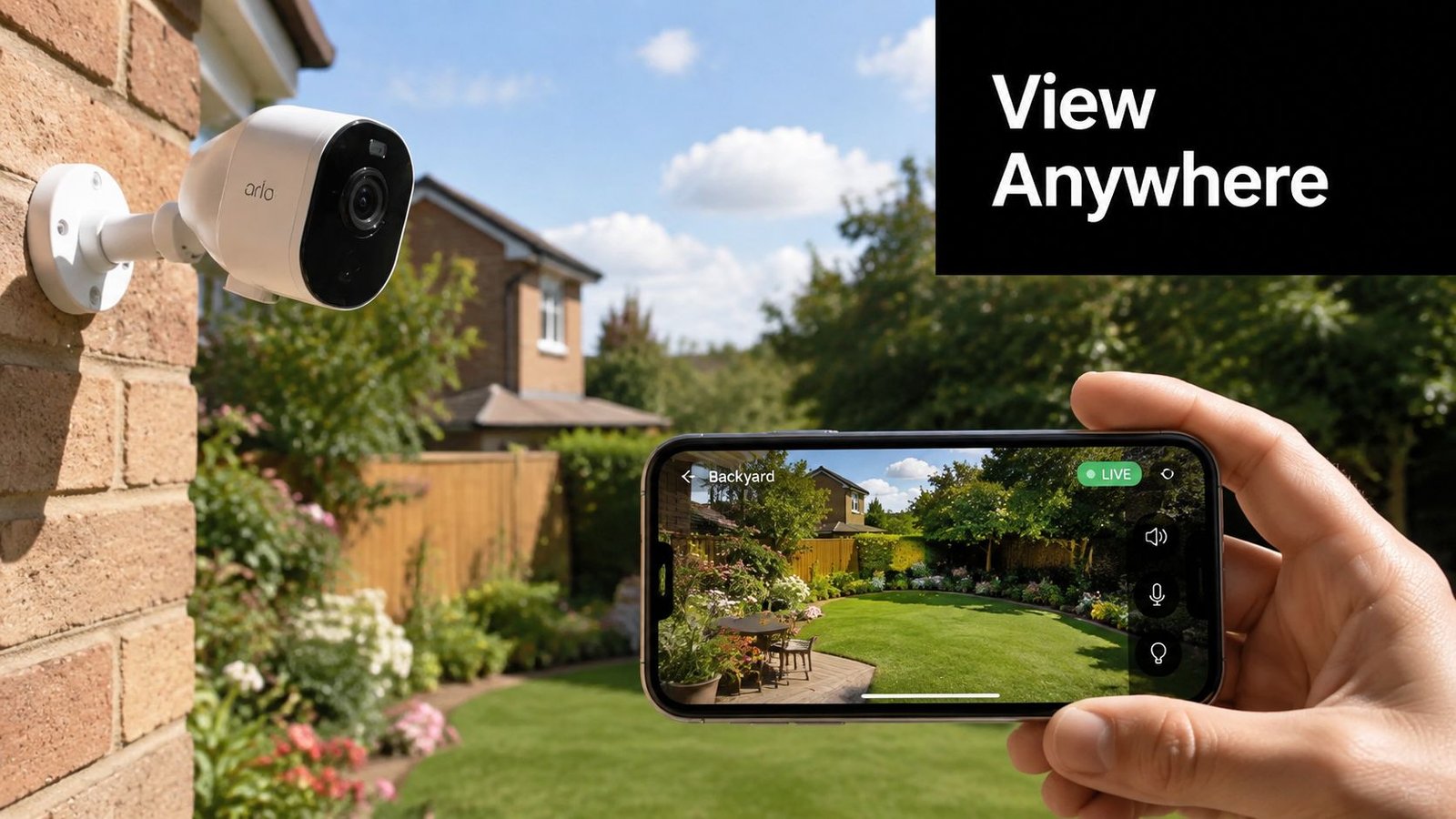
For a homeowner, the benefit is immediate. You can check whether a parcel has arrived, look at a motion alert before calling a neighbour, or verify that a side gate is closed. A small business owner might use the phone feed to confirm that staff have locked up, assess a delivery dispute, or review an incident without travelling to the premises.
The technical challenge is that the recorder normally sits on the property's local network. Your phone might be on a different Wi-Fi network or using mobile data, so the system needs an authorised internet route between the two. A manufacturer app with an encrypted remote-access platform is usually the most practical option for a standard UK installation. It's simpler than exposing a recorder directly to the internet, and it avoids assuming that local Wi-Fi automatically provides access from anywhere.
Practical rule: A camera being visible on your home Wi-Fi doesn't prove that it's reachable from mobile data. Test both before you trust the system.
Remote access also changes the value of the system. A local monitor shows what's happening when you're present. A phone turns the system into an on-demand service with live video, playback, and alerts. That shift is useful, but it means passwords, account permissions, firmware, signage, retention, and access controls still matter when footage is viewed remotely.
Preparing Your CCTV System for Mobile Access
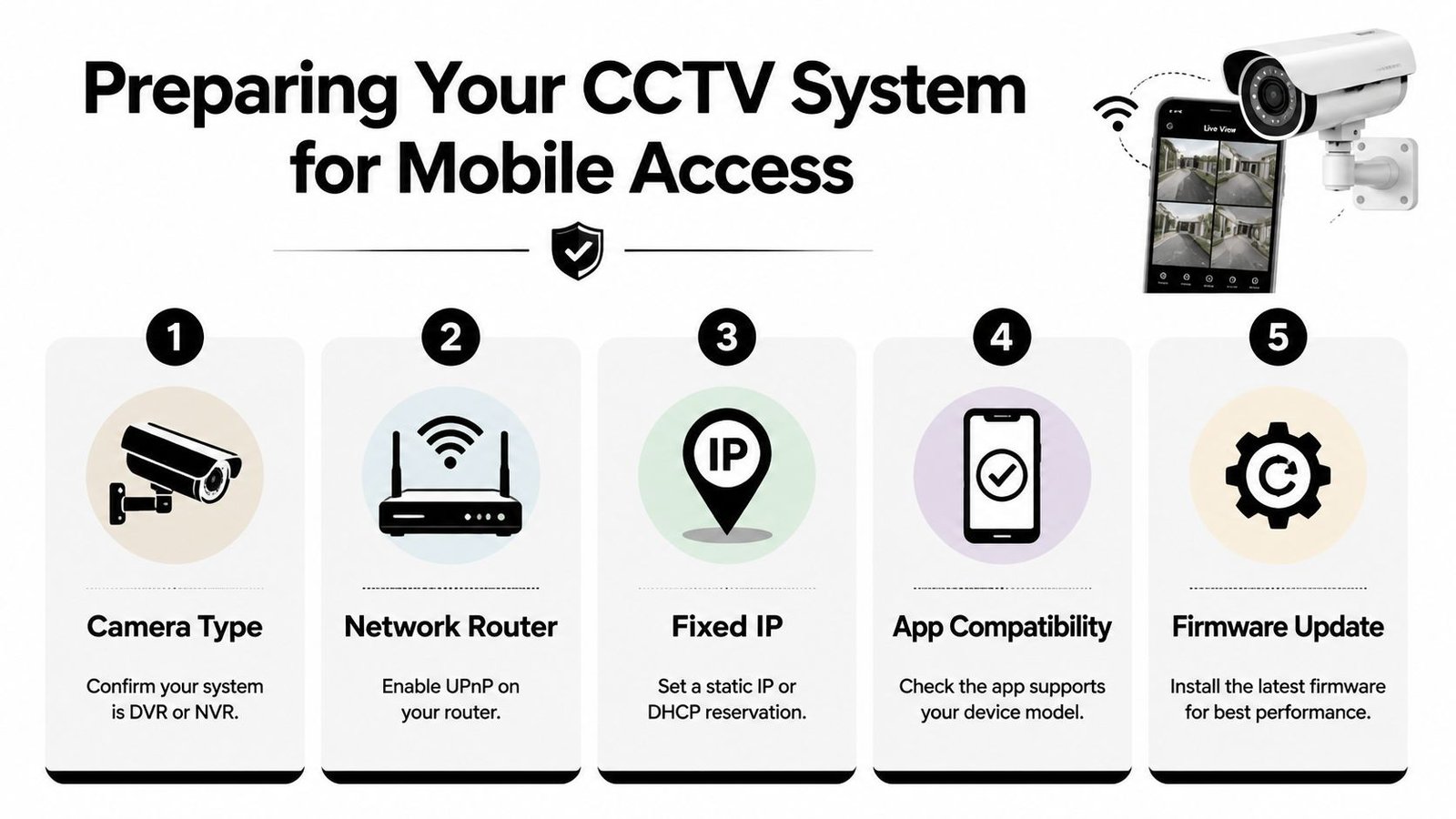
Start with the hardware, not the app. Identify whether your cameras connect to a DVR, commonly used with analogue systems, or an NVR, normally used with IP cameras. Check the recorder's model number, confirm that it supports network access, and look for a working Ethernet connection to the router or site network. A camera may record perfectly while its recorder lacks the software or connectivity required for phone access.
The system also needs a dependable broadband connection, particularly upload capacity at the property. Your phone is requesting video from the site, so the recorder must send that stream outward. If several cameras are viewed at once, or if the recorder is configured to send high-resolution footage continuously, limited upstream bandwidth can create delay, pixelation, or dropped frames. BT's mobile surveillance guidance describes remote video, audio, and secure viewing over low or variable-bandwidth networks, which is a useful benchmark when configuring streams.
Check the network before pairing
Work through these checks in order:
Confirm the recorder's network status. It should show an active connection and a valid local network address. If it reports a disconnected cable or failed gateway, the app won't solve the problem.
Give the recorder a stable local address. A static address or DHCP reservation prevents the router from assigning a different address later. This is especially important for systems using ONVIF, RTSP, or carefully configured network rules.
Update the router and recorder. Install current firmware from the manufacturer or supplier, following the documented process. Don't interrupt a recorder update, and export configuration details first where the system supports it.
Check app compatibility. Confirm that the exact recorder model, firmware family, and mobile operating system are supported. Older hardware can appear online but fail during account pairing.
Plan the mobile stream. Use the sub-stream for routine phone viewing where possible, then switch to the main stream for detailed checks. A single-camera preview is far more realistic on mobile data than forcing every available camera into maximum quality.
If the property uses a cellular router, temporary site connection, or unreliable fixed broadband, review practical cellular network tag articles before choosing the remote-viewing method. The connection type affects latency, reliability, and how quickly a live feed recovers after signal changes.
For a plain explanation of the camera hardware behind the recorder, see this guide to the difference between IP cameras and HD analogue CCTV. Once the recorder is online, stable, updated, and assigned a predictable local address, app pairing becomes a controlled setup task rather than guesswork.
Connecting Your Cameras to a Smartphone App
Use the manufacturer's app whenever it supports your system. Common examples include Hik-Connect for many Hikvision systems, DMSS for Dahua equipment, and Wisenet SmartCam applications for compatible Hanwha recorders. Download the app from the official iOS or Android store, then check the developer name and supported model before entering any credentials.
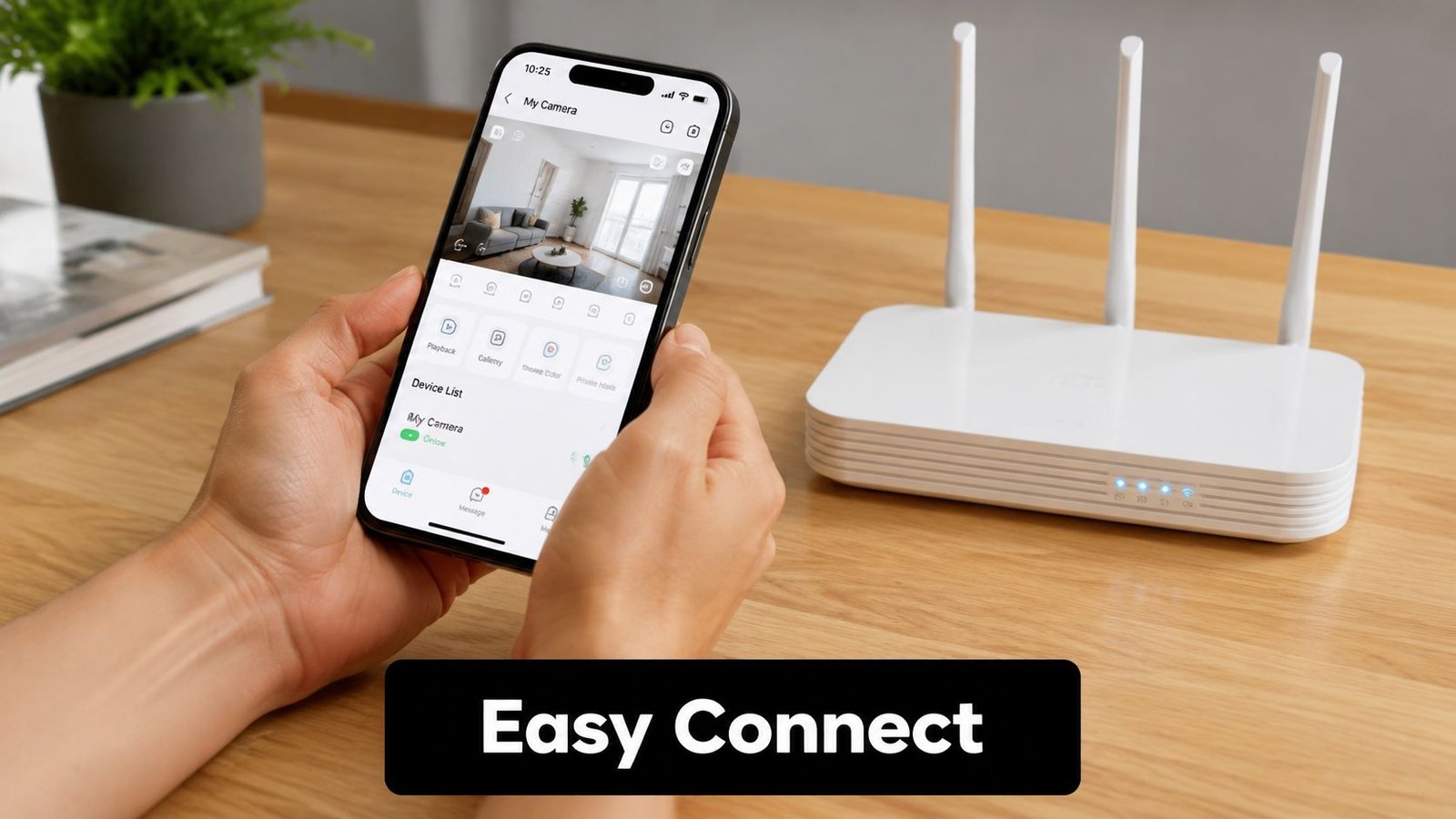
Create an individual account with a strong, unique password. Don't reuse the recorder's administrator password for the cloud account, and don't share the administrator login with every person who needs to see one camera. Where the app offers two-factor authentication, enable it and keep recovery details somewhere secure. If you're setting up an older handset for CCTV, a properly reset refurbished iPhone can be a practical dedicated viewing device, provided it receives security updates and uses a protected account.
Pair the recorder step by step
Open the recorder's network menu. Find the manufacturer's P2P, cloud, or platform-access setting. It may be disabled, show as offline, or require a verification code before the service becomes active.
Enable the service only after checking the security settings. Record the verification or encryption code privately. Don't photograph it alongside other sensitive installation details and leave the image in an unsecured gallery.
Add the device in the app. Scan the QR code shown on the recorder's monitor, or enter the serial number manually. The code identifies the hardware, while the account credentials authorise access.
Create a clear device nickname. Use a site name that makes sense to you, but avoid publishing an address or other unnecessary personal information in the label.
Enter the verification details. The app may ask for an encryption password, device password, or verification code. These are not always interchangeable, so use the exact field descriptions shown by the recorder and app.
Choose the stream. Select the sub-stream for quick checks and lower bandwidth use. Use the main stream when you need finer detail, such as reading a vehicle registration plate, subject to the camera's position, lighting, and lawful purpose.
Test live view and playback. Turn off Wi-Fi on the phone and test over mobile data. Then try playback, audio if fitted, push notifications, and any user permissions you've configured.
A P2P service can remain offline even when the recorder has a network cable. Check DNS, gateway, date and time, firmware compatibility, and the platform status shown on the recorder itself. Some installer configurations also disable cloud access until the owner confirms the service or updates the firmware.
If you manage several properties, add each recorder separately and group cameras by site. Keep home and business devices distinct, and give staff access only to the cameras and functions they need. A practical walkthrough of adding a device into Hik-Connect can help when the interface differs from the labels on the recorder.
The app route usually works because it handles authentication and connectivity without asking a homeowner to expose raw camera services. It still depends on the manufacturer's platform, so check the provider's account controls and keep the recorder maintained.
Choosing Between P2P, ONVIF, and RTSP Protocols
These protocols solve different problems. P2P is generally the easiest route for a single-brand installation because the manufacturer's app handles discovery, account access, and the remote connection. It reduces router configuration, but it makes you dependent on the manufacturer's service and its availability.
ONVIF is more useful when cameras, recorders, or viewing software come from different suppliers. It supports interoperability, although compatibility isn't always complete. A camera may provide video through ONVIF while advanced functions, audio, analytics, alarms, or configuration controls remain manufacturer-specific. Profile S and Profile T can also expose different capabilities, so verify the precise feature you need rather than assuming the label guarantees full integration.
RTSP provides a direct stream URL and granular control. It can suit a managed system using software such as Blue Iris or a compatible mobile viewer, but it demands stronger network design. Remote RTSP access should use a VPN or another properly controlled private route, not an exposed service with a weak password.
| Protocol | Setup Difficulty | Security Exposure | Multi-Brand Support | Best Use Case |
|---|---|---|---|---|
| P2P | Low with a compatible manufacturer app | Depends on account security and platform controls | Usually limited to supported ecosystem features | Home systems and single-brand small business installations |
| ONVIF | Medium, with model and profile checks | Requires controlled user accounts and network access | Stronger interoperability, but feature support varies | Mixed-brand systems and managed local recording |
| RTSP | High for secure remote use | Higher if exposed directly to the internet | Broad at stream level, subject to codec and authentication support | Low-latency, customised viewing through a VPN or controlled network |
For most homeowners asking how to view CCTV on phone, P2P through the official app is the sensible starting point. ONVIF becomes worthwhile when replacing one component without replacing the entire system. RTSP earns its place when an installer or network administrator needs precise control over recording, display, or integration.
Security trade-off: The easiest protocol isn't automatically the safest. Choose the smallest access path that delivers the feature you actually need.
Security Risks and UK Legal Obligations for Remote Viewing
Remote viewing expands the system's attack surface. An internet-connected recorder, mobile account, cloud service, router, and every authorised phone become part of the security chain. A weak password, unpatched recorder, lost handset, or careless user can expose footage that was previously available only on the premises.
The UK National Cyber Security Centre warns that live feeds can, in rare cases, be accessed by unauthorised users and recommends disabling internet remote viewing when it isn't needed. Its guidance on using smart security cameras safely should be treated as a configuration requirement, not optional reading.
Reduce the exposure
Use practical controls rather than relying on the app's default settings:
- Use unique credentials. Change default passwords on the recorder, cameras, router, and app account. Give each user a separate login where the system supports it.
- Turn on two-factor authentication. This adds a second check for account access and limits the damage caused by a stolen password.
- Patch the system. Keep the recorder, cameras, router, and app current, but verify compatibility before applying firmware to a business-critical installation.
- Avoid unnecessary exposure. Don't open raw camera services to the public internet when the manufacturer's controlled platform or a VPN can provide access.
- Review users regularly. Remove former staff, old phones, installers, and accounts that no longer need access.
- Segment the network where practical. Put cameras on a separate network or VLAN when the site's equipment and expertise support it.
UK compliance doesn't disappear because footage is viewed on a phone. Business CCTV is generally governed by the UK GDPR, the Data Protection Act 2018, and relevant surveillance guidance. Businesses that operate CCTV will usually need to register with the ICO, display clear signs, and control who can access recordings. The UK Parliament briefing on CCTV and data protection also highlights regular or automatic deletion and restricted access.
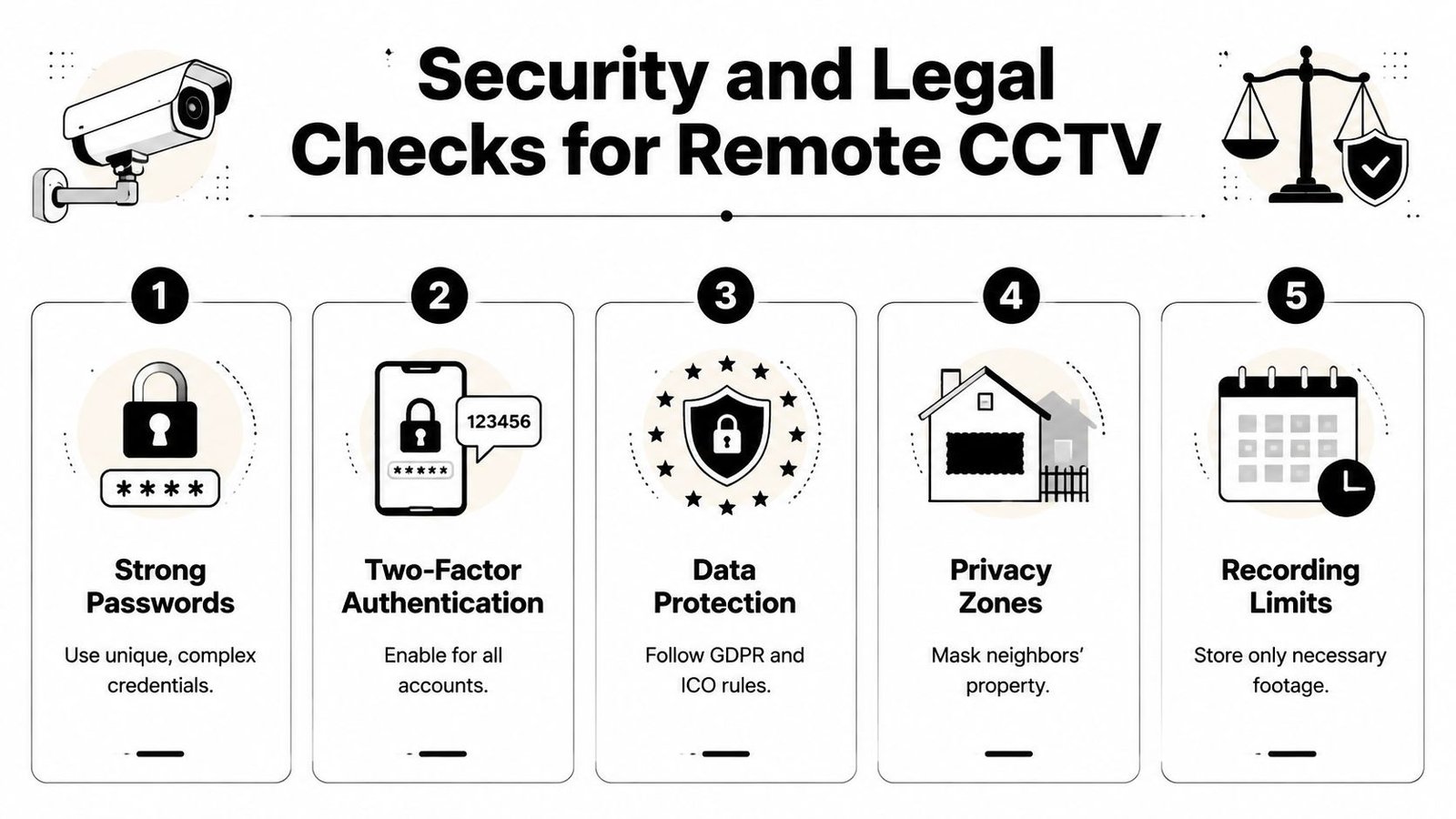
Businesses should document why cameras are used, who can view footage, how long recordings are retained, and how requests for images are handled. A staff member viewing a live feed from a personal phone is still handling CCTV data, so the organisation needs suitable permissions, device controls, and a clear process for sharing or exporting clips. People captured by the system may also ask for access to images of themselves.
The Surveillance Camera Code of Practice, introduced under the Protection of Freedoms Act 2012, established formal expectations for surveillance management in England and Wales, including live viewing and recording. The code applies in context, but the central point remains simple: streaming to a smartphone doesn't remove the duties attached to the footage.
Remote viewing may be the wrong choice for a sensitive site, a system with no patching plan, or a business unable to control staff devices. In those cases, local-only access with trained personnel and a documented export process can provide a better risk balance. For cloud-based recording considerations, review how CCTV cloud storage changes access, retention, and account management before enabling it.
Troubleshooting Common Connection and Streaming Problems
Start at the recorder, not the phone. If the app says device offline, check the Ethernet cable, link lights, network menu, gateway, and the P2P or cloud status shown on the recorder. Restarting everything can temporarily mask the fault, but it won't fix a missing gateway, failed service, or expired network lease.
If the recorder shows online locally but the app can't connect, remove assumptions one at a time. Confirm the app account is the one paired with the device, check whether the recorder is bound to another account, and test the phone over mobile data rather than the property's Wi-Fi. A local test only proves that the phone can reach the recorder inside the same network.
Match the fault to the likely cause
- Connection timeout: Check for double NAT, carrier-grade NAT, or an ISP configuration that prevents traditional inbound connections. P2P may still work, while direct RTSP or port-forwarding access fails.
- QR code failure: Increase screen brightness, clean the phone camera lens, enlarge the code on the recorder display, and try manual serial-number entry. Expired verification codes need to be regenerated on the recorder.
- Buffering and pixelation: Switch to the sub-stream, reduce its resolution or bitrate, and test one camera at a time. If the site's upstream connection is unstable, maximum quality won't produce a reliable mobile picture.
- Wrong camera or missing channel: Confirm that the app user has permission for that channel and that the recorder's camera numbering matches the app's site group.
- App incompatibility: Check firmware and app versions together. A newly updated app can expose problems in old recorder software, while an unsupported firmware update can disable a previously working integration.
RTSP users need a more exact diagnostic process. Confirm that the stream is enabled, the viewing software supports the codec, and the configured destination still points to the recorder's current local address. A router reboot can change that address if no reservation exists, causing a previously correct rule to point at the wrong device. Avoid exposing RTSP directly unless the network is professionally secured, and use a VPN where the design requires direct access.
Firmware updates deserve care. Export settings where possible, record the existing version, check the manufacturer's release notes, and schedule the update when a short recording interruption is acceptable. Update the recorder before changing several other variables, then recheck local recording, P2P status, live view, playback, notifications, and user permissions.
When to Call a Professional Installer
DIY pairing is reasonable when you have a supported recorder, stable broadband, a straightforward home network, and only a small number of authorised users. Stop troubleshooting alone when the recorder repeatedly drops offline, the property uses several routers or networks, the site has mixed camera brands, or staff need different access levels across multiple locations.
A professional installer should assess the camera views, recorder capacity, network route, mobile stream settings, account permissions, and update path as one system. For a business, the work should also cover signage, access control, retention settings, and a documented process for exporting footage or responding to requests from people captured on camera. Repeatedly changing router rules without understanding the network can create both security weaknesses and longer outages.
A suitable installation package may include a site survey, camera and recorder configuration, app pairing, secure remote-access setup, privacy-conscious positioning, network hardening, user training, and ongoing maintenance. Wisenet Security Ltd provides CCTV installations with smartphone access, live footage, playback, and notifications through dedicated iOS and Android apps, alongside broader security system installation and maintenance services.
Before booking, ask the installer to demonstrate remote viewing over both Wi-Fi and mobile data, explain which stream the app uses, show how users are removed, and confirm what happens when broadband or power fails. That demonstration separates a system that merely works on installation day from one you can manage safely over time.
If your CCTV system won't connect reliably, or you need a secure phone-viewing setup for a home, shop, warehouse, or multi-tenant property, contact Wisenet Security Ltd for a site assessment, app pairing, network configuration, and ongoing maintenance. Visit Wisenet Security Ltd to discuss a professionally managed CCTV solution across South Wales and the South West.