CCTV Remote Viewing: A Practical UK Setup Guide
A Cardiff shop owner is standing in a Bristol trade-counter queue when he opens the CCTV app to check the rear delivery door. The camera worked perfectly before he left, but the screen now says the recorder is offline. A homeowner in Penarth faces the opposite problem. The cameras work on home Wi-Fi, then stop responding as soon as the phone leaves the driveway.
That behaviour is common because CCTV remote viewing isn't one feature. It relies on the recorder, router, phone, and wider internet working together. A fault in any one of those four parts can look exactly the same from the user's side.
The usual causes include CGNAT from an internet provider, double-NAT behind a mesh system, unchanged default passwords, incompatible firmware, blocked services, and mobile-data restrictions affecting cloud connections. The practical answer isn't to keep refreshing the app. It's to set up remote access as a controlled service, test it away from the property, and secure it as carefully as the recorder itself.
Table of Contents
- Why CCTV Remote Viewing Trips People Up
- Choosing Your Remote Access Method
- Preparing Your Recorder and Home Network
- Connecting Through Phone and PC Apps
- Hardening Remote Access Against Attack
- UK Legal Rules for Homes and Businesses
- Troubleshooting and a Final Security Checklist
Why CCTV Remote Viewing Trips People Up
The four parts that have to cooperate
At the property, the cameras send video to the DVR or NVR. The recorder connects to the local router, the router provides internet access, and the phone reaches the recorder through either a manufacturer platform, a VPN, or a directly configured network path.
If the recorder has lost its local connection, the app may report it as offline. If the router has changed its public route, the same message can appear. The phone may also be using a restricted mobile connection, or the manufacturer's remote service may be unable to complete authentication.
Installer's rule: Always test the system locally before changing remote settings. If live view doesn't work on the same network, the internet connection isn't the first fault to chase.
The network arrangement creates several traps. A broadband provider may place the connection behind CGNAT, which prevents conventional inbound port forwarding. A mesh system can create double-NAT when its routing functions sit behind the ISP router. Both arrangements can leave the cameras working indoors while making traditional remote access unreliable.
The recorder itself causes trouble when its firmware doesn't match the connected cameras, when the default administrator account remains active, or when a service such as UPnP changes network behaviour without a deliberate decision. A cloud platform can also fail if the recorder's verification setting, account pairing, or outbound connection is incomplete.
Why a marketing-style setup falls short
A quick QR scan may produce a live picture, but it doesn't answer important questions. Who can view the footage? Can a former employee still access the account? Does playback work over mobile data? Are alerts reaching the right person? Is the recorder still supported and patched?
The ICO guidance on video surveillance treats CCTV as a service that needs attention across installation, operation, signage, public awareness, and secure storage. Remote viewing therefore needs both a technical test and an operational decision about access.
A dependable installation leaves the customer with named users, documented permissions, current firmware, and a confirmed off-site test. It also makes clear which method is being used, what can go wrong, and who is responsible for maintaining it.
Choosing Your Remote Access Method
There are four practical routes. They don't offer the same balance of convenience, control, and exposure.
Manufacturer cloud and P2P
Platforms such as Hik-Connect, iVMS and Dahua DMSS normally use an outbound connection from the recorder to the manufacturer's service. The phone then authenticates through that platform rather than connecting directly to an exposed household port.
This is usually the sensible default for a domestic system. It avoids much of the router configuration, works with many connections affected by CGNAT, and makes QR or serial-number enrolment straightforward. The trade-off is reliance on the vendor's service, account security, platform availability, and data-protection arrangements. A business should understand what information leaves the premises and which users can access the account.
DDNS with port forwarding
Dynamic DNS gives a changing public address a consistent name, while port forwarding sends selected traffic from the router to the recorder. This can work on a suitable connection, but it needs careful firewall rules, secure encryption, current firmware, and continuing maintenance.
CGNAT makes this route unsuitable on many UK connections unless the provider offers a usable public IPv4 service or a suitable static arrangement. Opening ports also makes the recorder easier to find and attack than an outbound relay or VPN design. It isn't the first choice for an ordinary home installation.
VPN access
A VPN lets an authorised phone or computer join the trusted network before reaching the recorder. For an office, shop, warehouse, or multi-user environment, this gives the administrator stronger control over who gets access and where the recorder sits on the network.
The drawback is complexity. The router, firewall, user accounts, certificates or keys, and client devices all need maintaining. Staff may also struggle with the extra connection step unless the system is properly managed.
Hybrid arrangements
Some sites use manufacturer cloud for selected users and VPN access for administrators or evidence review. That can work well, provided the permissions are deliberate and the business understands which footage is accessed through each route.
| Method | Setup difficulty | Cyber exposure | Best for |
|---|---|---|---|
| Manufacturer cloud or P2P | Lower | Relies on account, device, and vendor controls | Homes and straightforward small premises |
| DDNS and port forwarding | Higher | Directly increases internet exposure | Managed networks with a clear technical requirement |
| VPN-only access | Higher | Limits recorder access to authenticated network users | Shops, offices, and SMEs with capable routers |
| Hybrid access | Moderate to high | Depends on careful separation of users and services | Businesses needing convenience and administrative control |
For most homes, a manufacturer-supported P2P service is the practical starting point. For an SME handling staff, customer, or sensitive operational footage, VPN or a carefully designed hybrid approach deserves preference.
Preparing Your Recorder and Home Network
Remote access becomes much easier when the local installation is tidy. Start with the connection, not the app.
Check the broadband path
A camera system needs enough upload capacity to send the selected stream away from the premises. The required capacity depends on resolution, compression, frame rate, and how many people view the system, so measure the actual installation rather than relying on a package headline.
Log into the router and identify its WAN address. Compare it with the address reported by the internet provider. If they don't correspond, CGNAT may be involved. If the recorder sits behind a second router or mesh unit that also performs routing, double-NAT may be the reason direct access fails.
Check whether the provider blocks or restricts services used by the chosen recorder. Don't assume a port-forwarding rule will work because it saved successfully in the router menu.
Prepare the recorder
Give the recorder a predictable local arrangement. A fixed LAN address outside the router's automatic allocation range can make local administration simpler, although a properly managed DHCP reservation can achieve the same practical result.
Replace the default administrator password with a long, unique credential. Create a separate operator account for ordinary viewing and playback rather than handing every user administrator rights. Remove accounts that aren't needed and record who owns the main account.
Update the recorder and cameras using the manufacturer's supported process. Firmware compatibility matters because the NVR, cameras, mobile application, and cloud service all need to communicate correctly.
Pair the approved remote service
On a compatible recorder, enable the manufacturer's secure remote-access service. The screen will normally show a QR code, serial number, or verification and encryption setting. Keep that information private. It identifies the device and can assist an unauthorised person who is trying to enrol it.
The ICO says CCTV information must be kept securely so confidentiality, integrity, and availability are maintained, and its guidance covers the system from installation through storage and operation. That makes the enrolment record, user list, and access settings part of the installation paperwork, not disposable setup notes.
Finish by switching the phone off Wi-Fi. Open the app using mobile data, test live view, trigger an alert if alerts are required, and play a short recorded clip. A system that works only on the home network hasn't passed a remote-viewing test.
Connecting Through Phone and PC Apps
Use the manufacturer app deliberately
Hik-Connect on iOS and Android is a useful example of the manufacturer-cloud model. Sign in with the owner account, add the recorder using its QR code or supported serial number, enter the verification details requested by the recorder, and wait for the device to show online.
The app should provide live view, camera selection, stream-quality controls, playback, and event notifications where the recorder and subscription model support them. Push alerts depend on detection settings at the recorder, notification permissions on the phone, the app session, and the route to the mobile device. Check all four rather than assuming that a saved camera automatically produces alerts.
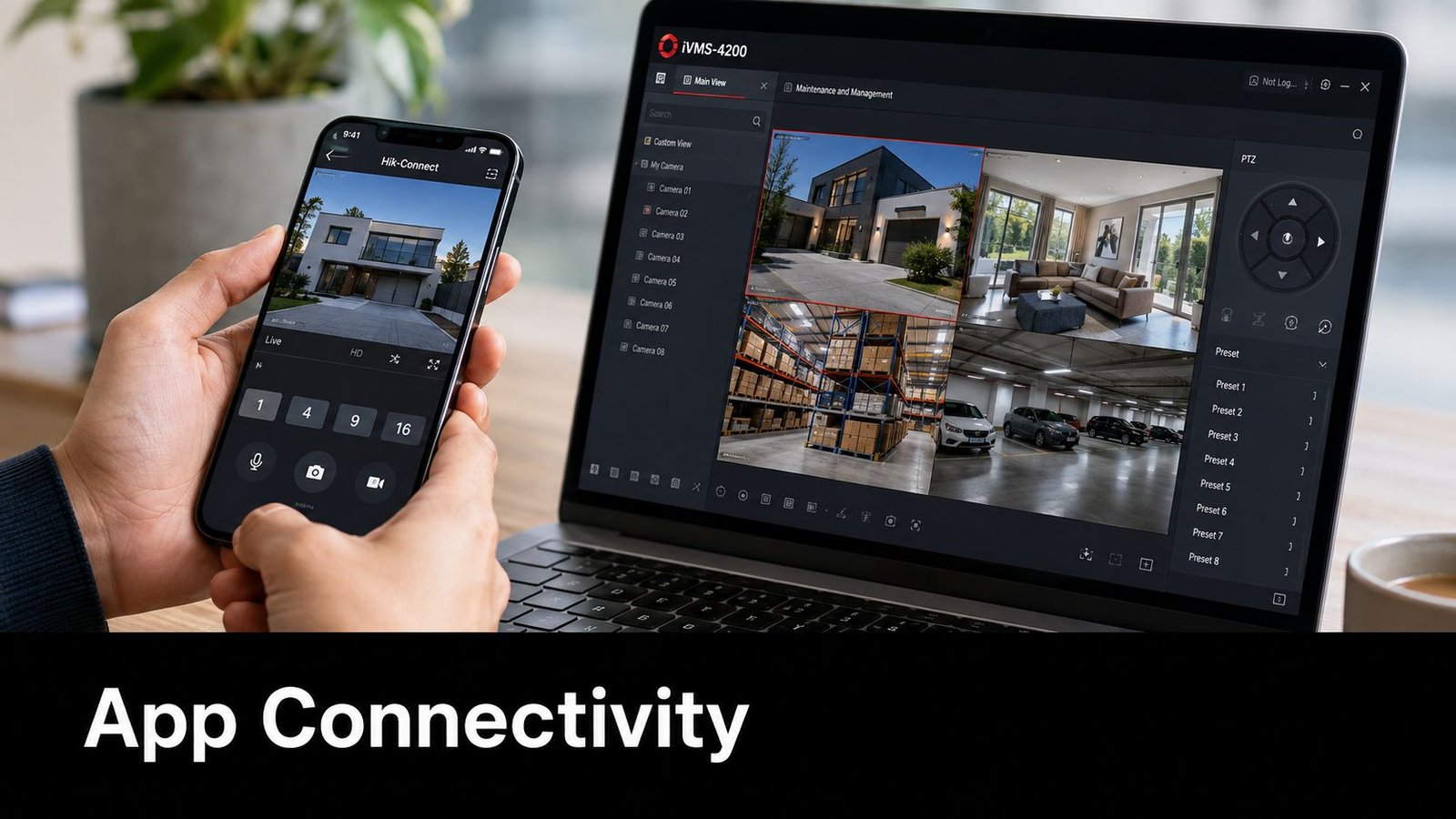
On the same Wi-Fi, some systems can use LAN discovery or a local address, which is useful for faster viewing and troubleshooting. That local mode doesn't prove that remote access works. Turn Wi-Fi off and repeat the test over 4G or 5G before relying on the system away from the building.
Separate owners from viewers
The owner account controls the device and its permissions. Staff or family members should normally receive their own accounts, with access limited to the cameras, live view, playback, PTZ control, or export functions they need.
Android and iOS versions can present settings differently, and a feature visible on one build may be placed elsewhere on the other. Keep both the operating system and the app current, but confirm that an update hasn't changed notification, privacy, or permission settings.
For a broader explanation of how remote systems combine apps, recorders, and network access, the guide to remote camera systems is a useful reference. For a Hik-Connect-specific enrolment walkthrough, use this Hik-Connect device setup guide.
Use a PC for evidence review
Dahua DMSS follows a similar pattern, while Hikvision's iVMS-4200 desktop client is better suited to reviewing long periods of footage, exporting clips, and managing several sites. A larger screen makes it easier to inspect timelines, switch between cameras, and confirm whether an event was recorded before and after the alert.
The desktop client still needs a controlled account and a secure access route. It shouldn't become an excuse to leave a shared administrator login on a reception computer.
Hardening Remote Access Against Attack
Treat the NVR as a networked computer that happens to store video. It has accounts, firmware, services, and an internet path, so a successful attack could expose footage or provide a route into the wider premises network.
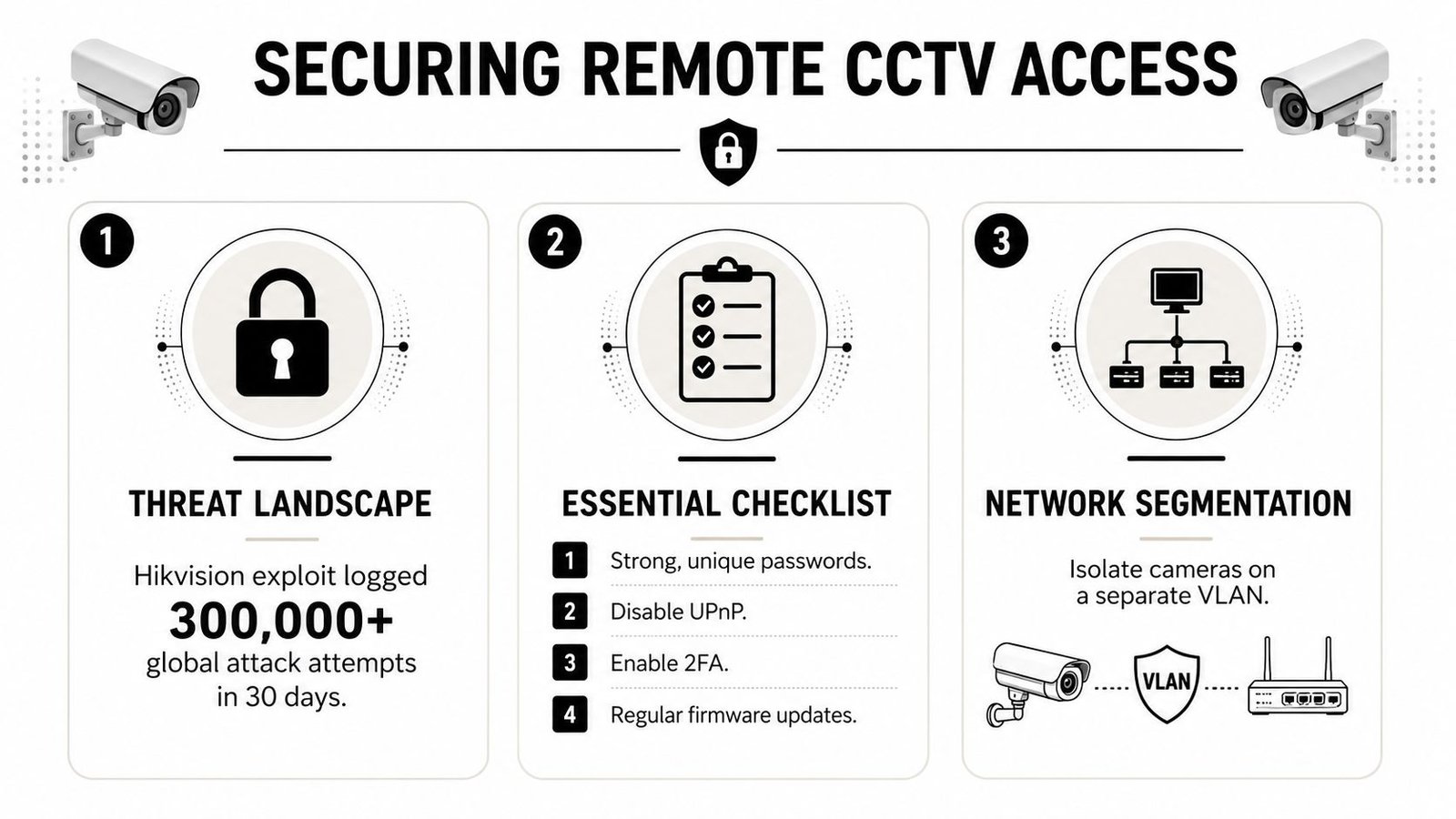
A 2026 report on UK networks recorded more than 67 million attack attempts against UK companies in the prior year linked to a decade-old Hikvision camera flaw. The figure comes from coverage of the Hikvision vulnerability and UK attack activity, and it illustrates why an old recorder with open exposure shouldn't be treated as harmless background equipment.
Reduce the device attack surface
Change every default credential, including camera-level accounts that may not be visible in the main app. Create a non-admin operator account, restrict exports and configuration changes, and enable two-factor authentication wherever the platform supports it.
Use HTTPS or the vendor's encrypted remote service where available. Disable UPnP so the recorder can't request automatic router exposure. Turn off unused services such as SADP, unnecessary discovery functions, and ONVIF where no integration needs it. If another platform does need ONVIF, restrict the account and network path instead of leaving discovery broadly available.
Keep the firmware and mobile applications current, and check vendor security notices when the recorder is maintained. Replacing a vulnerable unit may be more sensible than continuing to expose unsupported hardware.
Security decision: A cloud relay or VPN usually presents a narrower path than direct port forwarding. The right method is the one you can maintain, audit, and remove when a user no longer needs it.
Keep cameras away from business devices
On a shop or office network, place cameras and the NVR on a separate IoT VLAN where the router supports segmentation. Permit only the traffic the system needs, block direct administrative access from ordinary staff devices, and avoid giving the recorder unrestricted outbound access.
For a plain-language perspective on securing remote access in a small-business environment, these cybersecurity access controls from Finchum Fixes IT provide useful background. UK businesses should also treat CCTV as part of the wider cyber-risk surface. Wisenet Security Ltd's cyber-security service is relevant where CCTV needs to sit alongside broader alarm, access, and network controls.
The security policy for closed-circuit television also reinforces the importance of restricted access, purpose limitation, transparency, and controlled use. Convenience is useful, but it shouldn't decide the architecture on its own.
UK Legal Rules for Homes and Businesses
A camera inside a private home is treated differently from one that records a pavement, a neighbour's garden, a shared driveway, a communal hallway, customers, or staff. The UK government's CCTV guidance for businesses explains that the domestic exemption generally applies only while surveillance remains within the owner's private boundary. Once footage extends beyond it, UK GDPR and the Data Protection Act apply.
That distinction affects installations across South Wales and the South West. A home overlooking a pavement may need its camera repositioned or part of the image masked. A Cardiff Queen Street shop or Bristol salon needs a clear purpose, suitable signage, controlled access, secure storage, and a documented lawful basis for processing. See our CCTV and GDPR guide for UK businesses for the commercial obligations. Remote viewing does not remove these duties. It provides another route through which personal data can be viewed.
The Surveillance Camera Code
In England and Wales, the Surveillance Camera Code of Practice applies to surveillance camera systems in public places, whether images are recorded or viewed live. Its legal foundation came from the Protection of Freedoms Act 2012. The Code first entered into force in 2013, and its current version took effect on 12 January 2022.
The Code contains 12 principles relevant to remote viewing. They cover who may access images, access security, storage, transparency, review, and accountability. The ICO's guidance for organisations using CCTV says relevant authorities should have regard to the Code for both live viewing and recording. It identifies police, police and crime commissioners, local authorities, and the National Crime Agency among those authorities.
The Code expects systems to be reviewed regularly, at least annually. Businesses should apply the same discipline even where a formal public-sector obligation does not apply. Review the camera views, user permissions, retention settings, and remote access arrangements after changes to the premises or staff.
| Obligation | Domestic use | Commercial or SME use |
|---|---|---|
| Purpose | Keep surveillance within the private boundary where possible | Document why cameras and remote access are needed |
| Image coverage | Avoid neighbours, pavements, and shared areas | Limit views to relevant premises and activity |
| Transparency | Consider affected people where the exemption does not apply | Use clear, visible signage and suitable privacy information |
| Access | Keep app credentials private | Use named accounts, permissions, and access reviews |
| Storage | Secure footage and respond appropriately where data rules apply | Protect confidentiality, integrity, and availability |
| Review | Recheck camera angles and users after changes | Review the system regularly, including at least annual Code milestones where applicable |
People may request copies of footage or object to processing when data-protection law applies. A business should know who handles those requests, how footage is located, and when it is securely deleted. Remote access logs and named user accounts make that process easier to evidence.
Troubleshooting and a Final Security Checklist
This is the call-out sheet worth leaving on the kitchen counter after a Cardiff or Bristol installation. Start with the symptom, make one controlled change, and test again. Randomly rebooting every device can hide the original fault.
| Symptom | Likely cause | First fix to try |
|---|---|---|
| App stays on “device offline” | Recorder has lost internet access, cloud service is disabled, or account pairing is stale | Check local live view, confirm the recorder's network status, then sign out and re-authenticate |
| No live video, but LAN viewing works | Remote stream is blocked, permissions are incomplete, or the mobile connection can't reach the service | Test the lower-bandwidth stream over mobile data and check that the user has live-view rights |
| Playback shows no recording | Wrong date range, recorder clock drift, failed storage, or user lacks playback permission | Check the recorder time, storage status, selected camera, and account permissions |
| Mobile data fails while Wi-Fi works | Remote path wasn't tested, CGNAT affects the chosen method, or mobile data restricts the service | Turn off Wi-Fi, confirm mobile data is enabled for the app, and test the approved cloud or VPN route |
| QR pairing repeatedly fails | Verification setting is wrong, QR is unreadable, device is already bound, or firmware is incompatible | Enrol with the supported serial number, check binding status, and update compatible firmware |
| Notifications arrive late or not at all | Phone permissions, detection rules, recorder time, or push-session issues | Check app notifications, detection schedules, time synchronisation, and the notification account |
The security check before handover
- Credentials: Every user has a unique account, and the default administrator password is no longer in use.
- Permissions: Viewers can access only the cameras and functions their role requires.
- Software: Recorder, cameras, router, and apps use supported, current firmware where available.
- Second factor: Two-factor authentication is enabled on the account when the platform provides it.
- Exposure: UPnP is disabled, unnecessary services are off, and no avoidable public ports are open.
- Testing: Live view, playback, alerts, and user permissions have all been checked over mobile data.
- Privacy: Camera angles, signage, access procedures, storage controls, and deletion arrangements match the purpose of the system.
- Records: The owner knows who can access footage and how to remove a user when circumstances change.
Put a recurring review in the diary every 90 days. Test remote login from mobile data, verify that the recorder is retaining footage as intended, check the user list, inspect the camera views, and confirm that signs remain visible and legible. For a business, include the review in the same maintenance routine as alarms, access control, and other connected systems.
If your remote feed works only at home, or you want the setup checked before exposing it to the internet, Wisenet Security Ltd can design, install, and maintain CCTV with smartphone remote viewing, playback, alerts, and controlled user access. Contact the team to arrange a practical assessment for your home or premises in Cardiff, Bristol, Newport, Swansea, or the surrounding South Wales and South West areas.